Take Payments on Your Website With Your Own Stripe Account
Connect your own Stripe account from your dashboard, then see every payment and payout in one place.

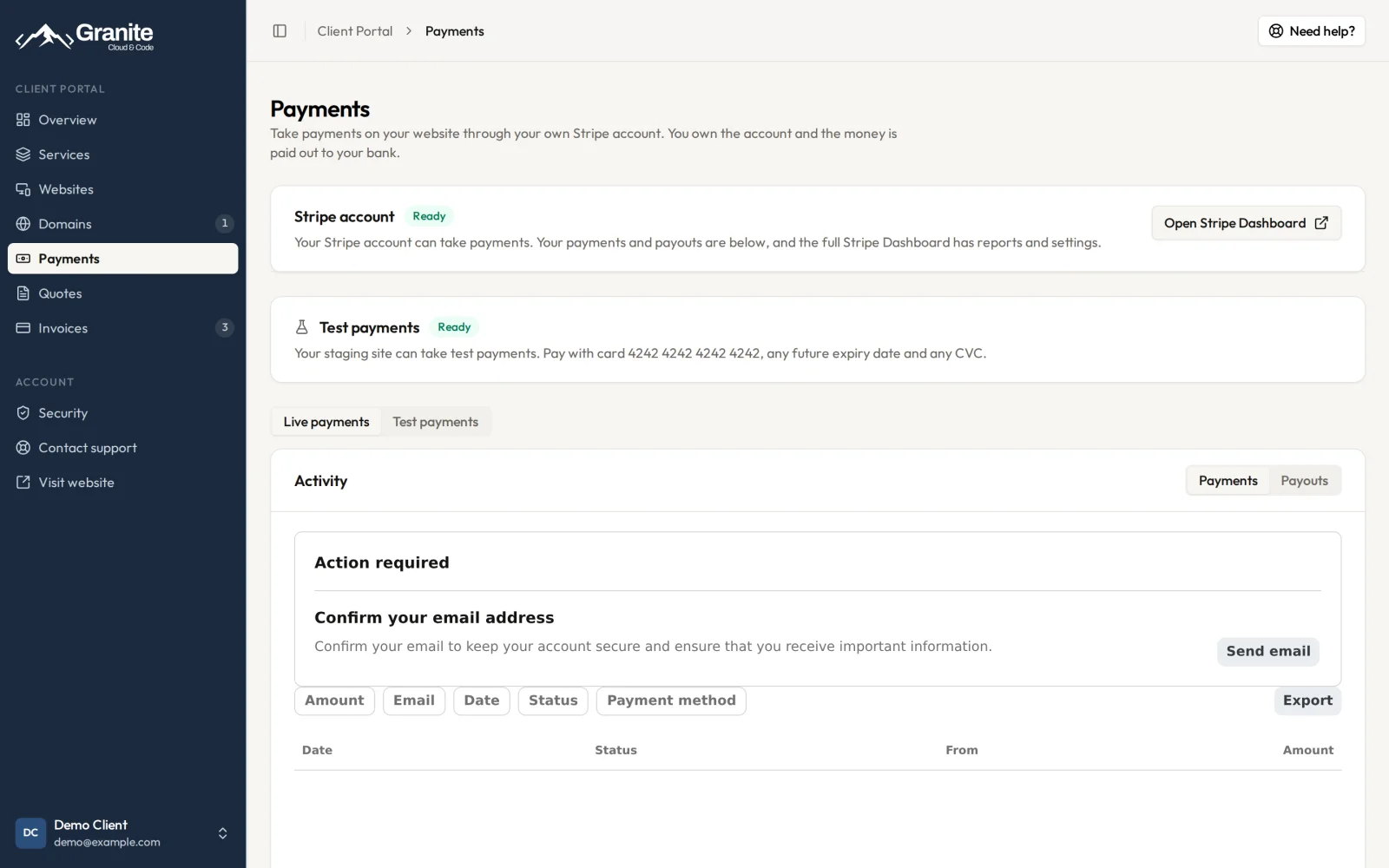
If your website takes deposits, bookings, or orders, the money has to land somewhere. For a lot of small businesses, that "somewhere" ends up being a tangle: an account someone else set up, a login nobody remembers, and a separate website to check every time you want to know whether a customer paid.
Starting today, you can set up payments right from your Granite Cloud & Code dashboard. The account is yours, the money goes to your bank, and your payments and payouts show up in the same place you already manage your website.
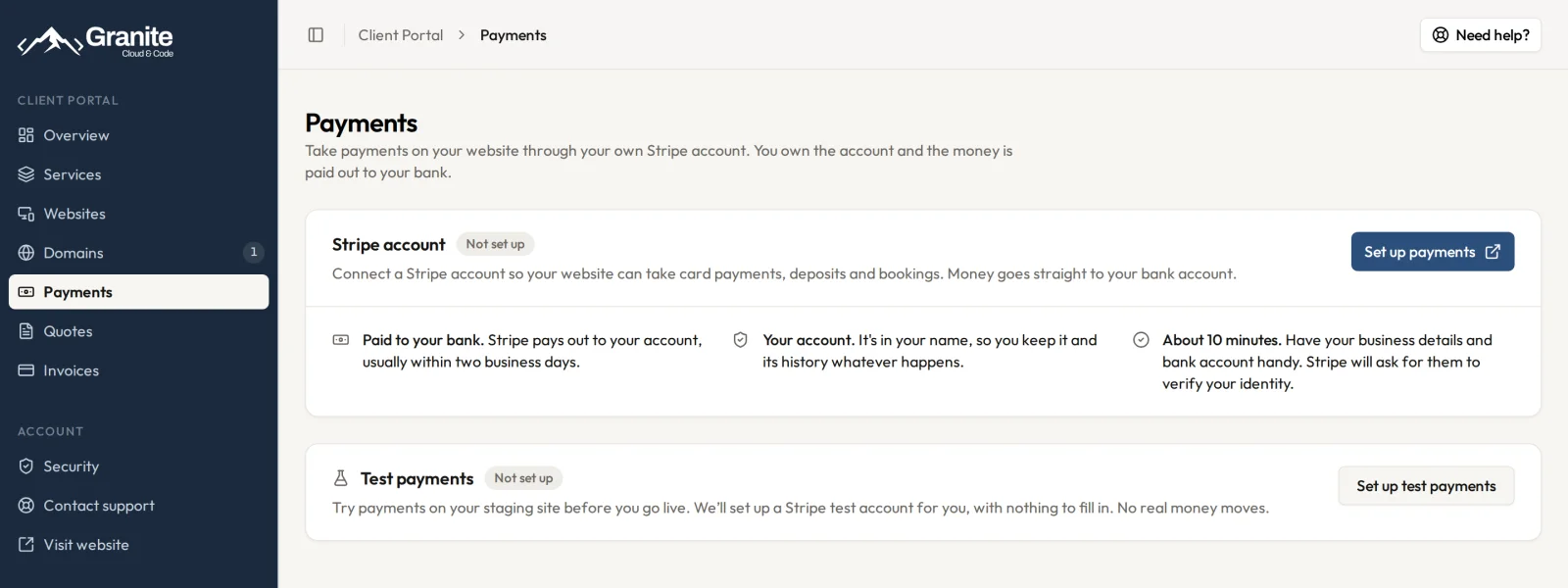
Before setup: one button, about 10 minutes, and the account is yours.
Your Account, In Your Name
We built this on Stripe, the payment processor behind millions of businesses. One thing mattered more than anything else: the Stripe account belongs to you, not us.
It's in your name. You keep the account and its full history, whatever happens. If you ever move your website elsewhere, your payment history stays with you.
Money goes straight to your bank. Stripe pays out directly to your bank account, usually within two business days. It never passes through us.
You get the full Stripe Dashboard. Reports, tax settings, customer records, all of it. Nothing is hidden behind us.
Stripe's standard fees, nothing extra. Stripe charges 2.9% + 30¢ per successful card payment, the same as if you'd signed up on your own. The fee comes out of each payment before it's paid out, so a $100 deposit lands in your bank as $96.80.
Setup Takes About 10 Minutes
Open Payments in your dashboard and click Set up payments. Stripe takes it from there with its own secure signup, where you'll confirm your business details and add the bank account you want to be paid into. Have those handy before you start.
Don't have time to finish in one sitting? That's fine. Your dashboard remembers where you left off and shows a Continue setup button whenever you're ready to come back.
Once you're done, Stripe reviews your details. That usually takes a day or two. Your dashboard shows exactly where things stand:
Status | What it means |
|---|---|
Not set up | You haven't started yet. |
Setup not finished | You started but didn't finish. Pick up where you left off. |
Under review | Stripe is checking your details, usually a day or two. |
Information needed | Stripe needs a few more details before it can keep paying out to you. |
Ready | You can take payments. |
See Your Payments and Payouts Without Leaving the Dashboard
Once your account is ready, the Activity panel shows your Stripe payments and payouts right in your dashboard, no second login required.
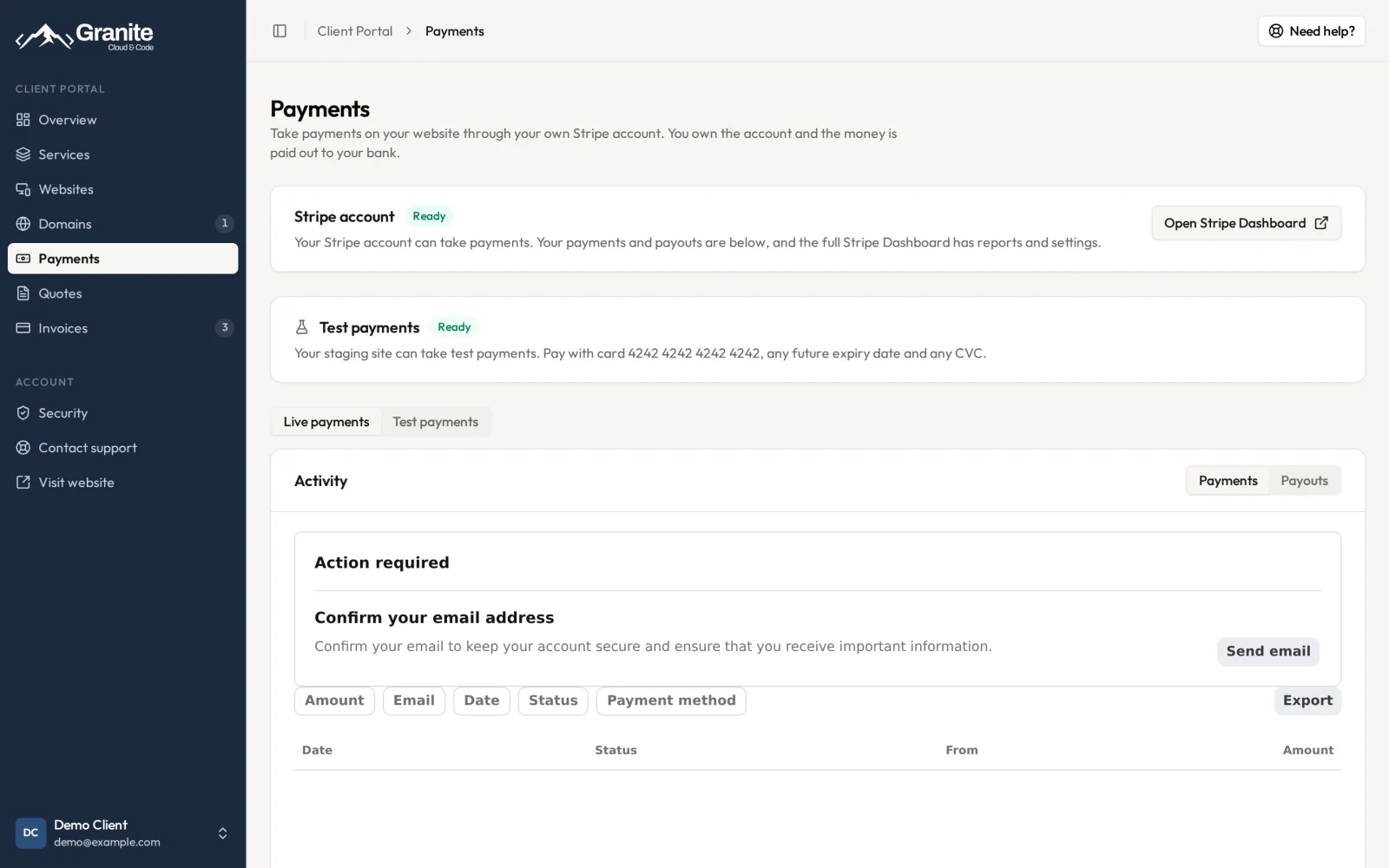
After setup: account status, test payments, and your activity, with any Stripe alerts shown right at the top.
Payments: Every charge, with filters for amount, customer email, date, status, and payment method. You can issue refunds, respond to disputes, and export your payments for your bookkeeper, all from here.
Payouts: Every transfer from Stripe to your bank, so you can match deposits to your bank statement.
Alerts: If Stripe ever needs something from you, like confirming your email or updating your business details, it shows up at the top of the panel. You won't miss it in an inbox.
Want the deeper reports? The Open Stripe Dashboard button is one click away.
Try It on Your Staging Site First
Every site we host has a staging version where changes get previewed before they go live. Now payments can be previewed too.
Click Set up test payments and we'll create a Stripe test account for you. There's nothing to fill in, and it's usually ready in under a minute. Your staging site can then run real checkouts with fake money. Use card number 4242 4242 4242 4242, any future expiry date, and any CVC.
Test activity shows up in your dashboard with a Test data label, and a Live / Test switch keeps the two separate. You can walk through your checkout, see the payment arrive, and try a refund before a single real customer ever sees it.
Why We Built This
Payments are where a website stops being a brochure and starts doing real work for your business: taking deposits, booking appointments, selling gift cards. But "who owns the account?" and "where do I check if they paid?" were questions we kept hearing.
Now the answer to both is simple: you do, and right in your dashboard.
Get Started
Already a client? Log into your dashboard, open Payments, and click Set up payments.
Want your website to take payments but not sure where to start? Use Request a feature on your site in the dashboard and choose Payments. We'll send you a quote before any work starts. Not a client yet? Get in touch and let's talk about what your site should be doing.
Comments
Sign in to leave a comment.